
You pick up your smartphone to check a notification, the screen lights up, and there it is: a glaring, distracting white spot that wasn’t there yesterday. It’s brighter than the rest of the display, stubbornly sitting in the corner or center of your view. For anyone who values a pristine display—whether for gaming, streaming, or just daily use—this visual blemish is more than just annoying; it’s a disruption to your seamless tech experience.
These bright spots, often referred to as “pressure spots” or “clouding,” are a common issue in modern LCD displays. While OLED screens (common in high-end flagships) have their own issues like burn-in, LCDs found in many mid-range and older flagship devices are susceptible to backlight irregularities. The good news is that seeing a white spot doesn’t immediately mean your device is destined for the recycling bin.
In this guide, we’ll break down exactly why these spots appear, how to diagnose the root cause, and the actionable steps you can take to banish them. Whether you’re ready to get hands-on with a DIY fix or need to know when to call in the pros, we’ve got you covered.
Identifying the Culprit: Why Do White Spots Appear?
Before you grab your toolkit, you need to understand the mechanics of the problem. A white spot on a phone screen typically indicates an issue with the backlight unit or the liquid crystal layer. Unlike dead pixels (which are black and fail to light up) or stuck pixels (which are usually red, green, or blue), a white spot is essentially a “hotspot” where light is passing through uncontrollably.
| Issue Type | Main Cause (Wajah) | Best Solution (Hal) |
| White Spot | Excessive Pressure ya Liquid Damage | Massage, Heat, ya Screen Replacement |
| Dead Pixel | Internal Hardware Failure (Black spot) | Screen Replacement (DIY se theek nahi hota) |
| Stuck Pixel | Pixel Voltage Glitch (Colored spot) | Pixel Fixer App ya Software Tool |
| Cloudy Patch | Moisture (Nami) ya Swollen Battery | Battery Change ya Professional Cleaning |
Here are the three most common causes:
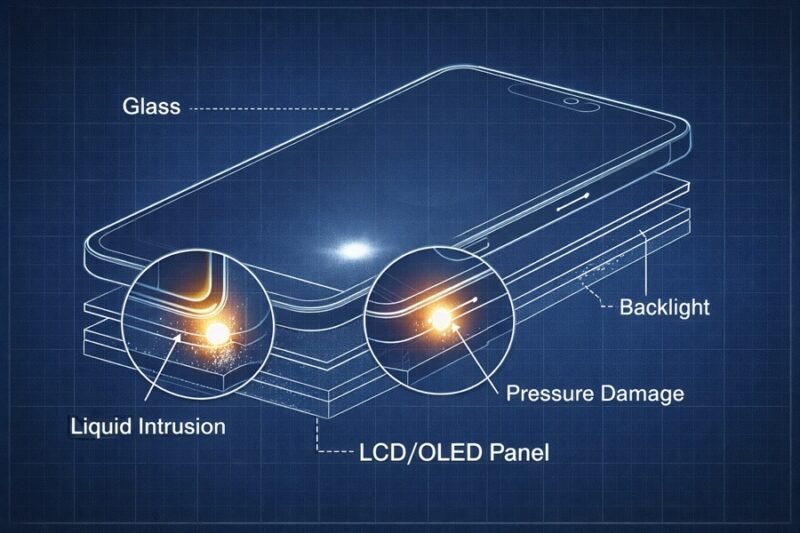
1. Pressure Damage
This is the most frequent offender. Modern smartphones are incredibly thin, meaning there is very little space between the glass, the display panel, and the internal components. If excessive pressure is applied to a specific point on the screen—perhaps from sitting on your phone, dropping it, or a swollen battery pushing from the inside—the liquid crystals can get displaced or the backlight reflector can get crushed. This damage allows more light to bleed through a specific area, creating that signature bright spot.
2. Hardware Defects
Sometimes, it really isn’t your fault. Manufacturing imperfections can lead to uneven light distribution. If the optical adhesive used to bond the screen layers wasn’t cured properly, or if there is a slight misalignment in the backlight diffuser, spots can develop over time. This is often covered under warranty, but it can be frustrating for early adopters facing first-batch production issues.
3. Liquid Intrusion
We all know water and electronics don’t mix, but you don’t need to drop your phone in a pool to see damage. High humidity or a splash of liquid seeping into the charging port or speaker grille can work its way up to the backlight layer. When fluid gets between the film layers of the screen, it changes the refractive index, often causing bright, cloudy patches that look like water stains.
DIY Solutions: Can You Fix It Yourself?
If you are comfortable tinkering with your tech, there are a few methods you can try before resigning yourself to a screen replacement. However, proceed with caution: applying too much heat or pressure can worsen the issue.
Method 1: The Pressure Massage
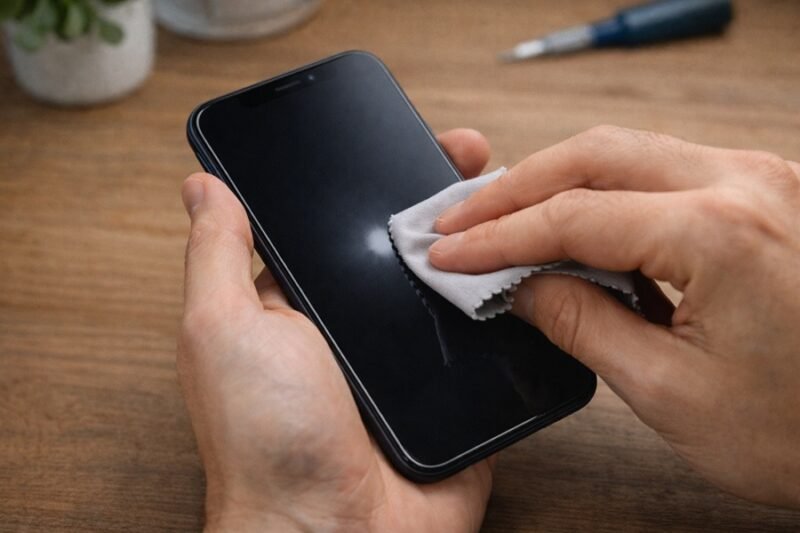
If the spot is caused by a minor displacement of the internal layers (common with pressure damage), you might be able to nudge things back into place.
- Turn off the display: It’s easier to see surface contact without the backlight on, but you should periodically turn it on to check your progress.
- Use a soft cloth: Microfiber is best to avoid scratching the glass.
- Apply gentle pressure: Using your thumb or a soft eraser, gently press against the white spot.
- Work the edges: slowly massage from the center of the spot outward. The goal is to relieve the stuck pixels or trapped liquid crystal flow.
- Check results: Turn the screen on. If the spot has faded, you can repeat the process carefully.
Warning: Do not press so hard that you crack the glass or damage the digitizer.
Method 2: The Heat Treatment
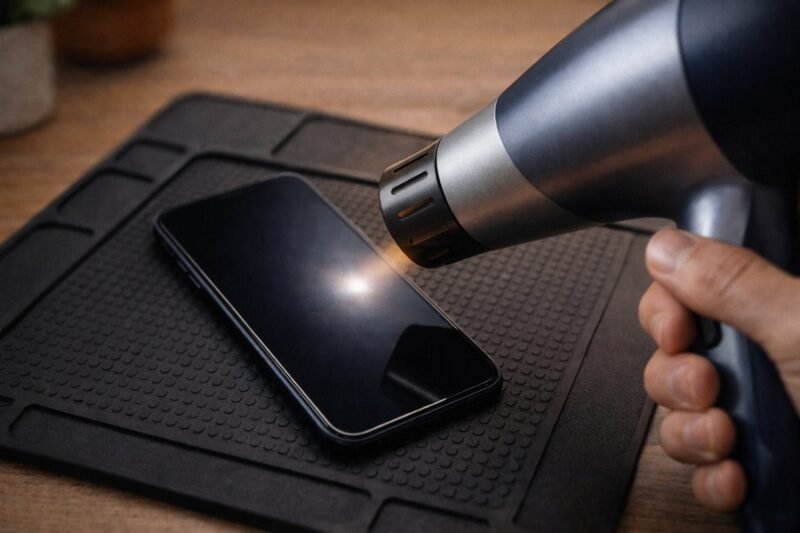
In some cases, especially where adhesive issues or minor moisture is the culprit, controlled heat can help.
- Power down: Always turn off your device before applying heat.
- Use a hair dryer: Set it to low or medium heat. Do not use a heat gun, as they can easily melt internal glues and plastic components.
- Heat the affected area: Hold the dryer about 6-8 inches away from the screen. Move it back and forth over the white spot for 1-2 minutes.
- Cool down: Let the phone return to room temperature naturally.
- Test: Power it up and check the spot.
This method can sometimes re-activate the adhesive or help evaporate trace amounts of moisture trapped between the layers.
Method 3: Software Calibration (The Long Shot)
If the issue is related to voltage irregularities driving the pixels (rare for white spots, but possible), a pixel fixing app might help. These apps rapidly cycle colors on the screen to “unstuck” pixels.
- Download a reputable “Dead Pixel Fixer” app from the Play Store or App Store.
- Run the “noise” or “burn-in fix” mode over the affected area for several hours.
- While this is more effective for stuck colored pixels, some users report success with minor backlight uniformity issues.
When to Seek Professional Repair
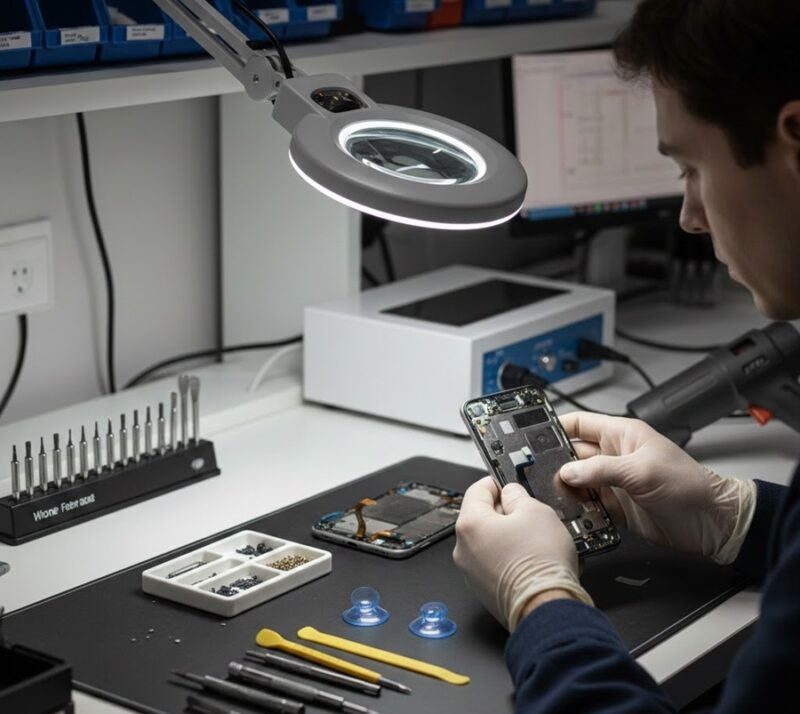
As much as we love a good DIY project, hardware limitations are real. If the white spot is caused by a swollen battery, stop immediately. A swollen battery is a fire hazard. If you notice the screen bulging or lifting away from the frame near the white spot, power off the device and take it to a professional.
You should also opt for professional repair if:
- The spot is growing: This suggests progressive failure of the LCD or worsening liquid damage.
- Touch is unresponsive: If the digitizer is damaged along with the display, software fixes won’t help.
- Warranty is active: If your device is less than a year old (or covered by AppleCare+ or similar protection plans), don’t void your warranty by opening it up.
Professional repair usually involves a full screen assembly replacement. For modern phones where the glass, digitizer, and LCD/OLED are fused, this is the only way to get a factory-perfect result.
Preventing Future Display Damage
Once you’ve restored your screen to its former glory—or upgraded to a new device—you’ll want to keep it that way. Here is how to stay ahead of the curve and protect your investment.
Invest in Rigid Protection
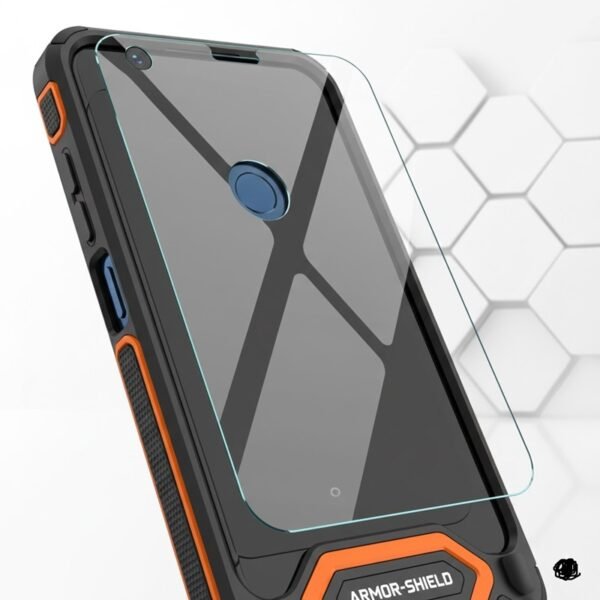
Silicone cases offer grip, but they don’t always protect against crushing pressure. Look for a case with a rigid backplate or raised bezels. Furthermore, a high-quality tempered glass screen protector adds a sacrificial layer that disperses impact force across the surface rather than letting it concentrate on a single point (which causes those pressure spots).
Watch Your Charging Habits
Heat is the enemy of electronics. Charging your phone while running graphic-intensive games or leaving it on a car dashboard in the sun can degrade the display layers and the battery. A degrading battery expands, and that internal pressure pushes directly against the back of your screen.
Mind the Pockets
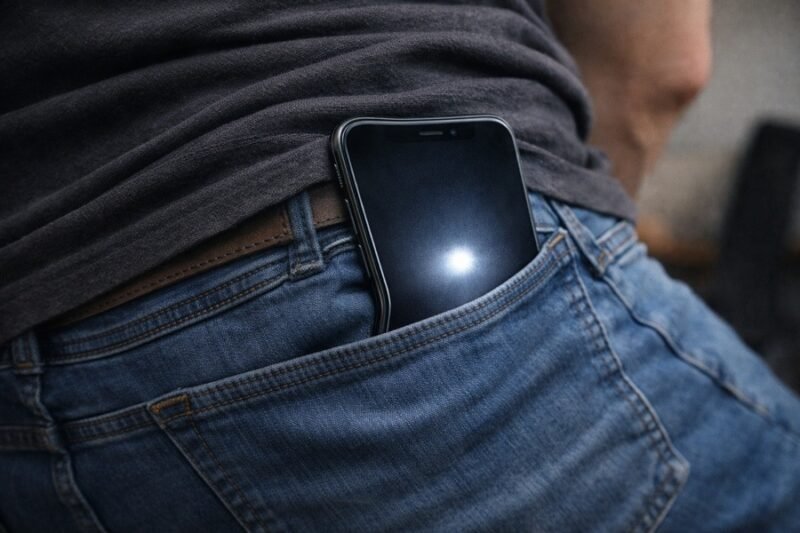
It sounds simple, but tight jeans are a major cause of pressure spots. When you sit down with a large phone in a tight pocket, the chassis can flex. Even a microscopic amount of flex can pinch the display layers. If you carry your phone in a bag, ensure it isn’t being crushed by laptops or heavy books.
Taking Action
A white spot on your phone screen is a blemish on your user experience, but it isn’t always permanent. By diagnosing the cause—whether it’s a drop, a splash, or a manufacturing hiccup—you can decide on the best path forward.
If you are dealing with a minor pressure spot, give the massage or heat method a try. If you suspect a swollen battery or severe hardware failure, prioritize your safety and visit a repair shop. Your tech is your portal to the world; keep it clear, bright, and fully operational.
FAQs
Can a white spot spread over time?
Yes, it is possible. If the spot is caused by a swollen battery that continues to expand, the pressure area will grow. Similarly, if the adhesive is failing, the separation between layers can worsen, leading to larger spots or additional light bleed.
Will putting my phone in rice fix a white spot caused by water?
No. The “rice myth” is largely ineffective for drying out internal components. If water trapped in the backlight layer is causing the spot, the corrosion has likely already started. Proper desiccant packs are better, but professional cleaning is usually required for water damage.
Does a white spot affect touch sensitivity?
Usually, no. The digitizer (touch layer) is separate from the backlight and LCD layer. However, if the spot was caused by significant impact, the digitizer glass could be weakened, potentially leading to dead zones later on.
Are white spots visible on screenshots?
No. A screenshot captures the data being sent to the display processor, not the physical output of the screen hardware. If you take a screenshot and view it on another device and the spot is gone, you have confirmed 100% that it is a hardware issue with your screen.
Elevate Your Tech Game
A white spot on your phone screen disrupts the immersive experience that modern technology is designed to provide. While it is a frustrating hardware flaw, understanding the difference between pressure damage, stuck pixels, and battery issues empowers you to make the right repair decision.
Whether you manage a successful DIY fix or opt for a professional screen replacement, addressing the issue promptly ensures your device continues to perform at an elite level. Don’t settle for a compromised display—restore your tech to its full potential.

& learn effective DIY fixes to restore your screen.)